The LLM Management section in Axoma is a centralized interface that enables Super Admins to handle all aspects of integrating and controlling Large Language Model (LLM) services within the platform. This area is designed for flexibility, security, and scalability, giving organizations full administrative control over how LLMs are accessed, configured, and budgeted across different applications and environments.
Home > Global Settings > LLM Management
Axoma lm
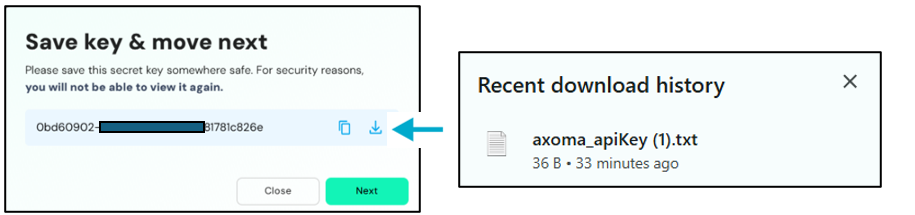
Important: Once the API key is generated, make sure to copy or download it and store it in a secure location. This key will be required for future use and cannot be retrieved again from the platform.

API Key Creation

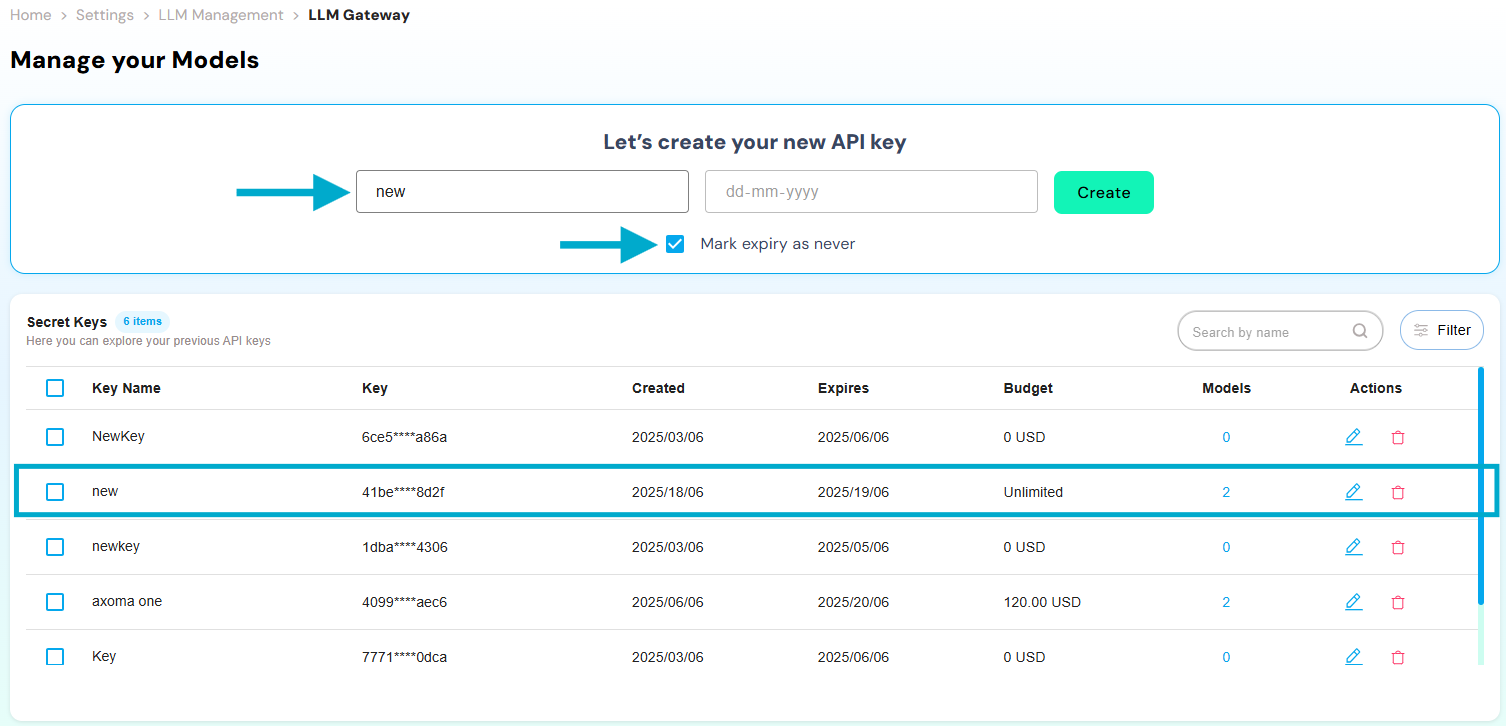
Administrators can generate secure API keys that act as gateways to connect the platform with third-party LLM providers. These keys are essential for authenticating model requests and maintaining control over access. Within Global Settings > LLM Management, a Super Admin can:
  1. Generate an API Key
  2. Set an Expiry Date (must be later than the current date) can choose Never Expiring date option.
  3. Add/Update LLMs and Embedding Models from supported providers such as OpenAI, Anthropic, Google, Amazon, or organization-specific models against the generated key.
  4. Configure Model Parameters and Budgets including token limits, temperature, max tokens, and usage permissions
  5. Save configurations under the associated API key.
Once saved, the API key enables seamless interaction across models via a unified access point, simplifying integration and supporting multi-model orchestration. Axoma lm

Adding Model Providers After Key Creation

Once an API key has been successfully created and the secret credentials downloaded, the user is redirected to the “Add New Models” interface. This screen serves as the starting point for attaching LLM providers and their respective models to the created key, enabling applications to access and query LLMs securely and efficiently. Axoma lm

Key Details Section

At the top of the screen, the Key Details section displays:
  • Key Name: The name given to the API key at the time of creation. This is a read-only field used for reference.
  • Expiry: Indicates the validity period of the key. If the key was set to never expire, it will show “Never.”
  • Secret Key: The masked version of the generated API key used to authenticate LLM requests. This should be stored securely after download.
These fields give a snapshot of the key’s identity and lifespan, helping you verify that you’re configuring the correct key before assigning providers.

Provider & Model Details Section

Below the key details, the Provider & Model Details section allows Super Admins to begin configuring models for the selected key: Provider Dropdown: Click on ”+ ADD NEW PROVIDER” to access the list of supported providers. The dropdown reveals options such as:
Model Type: LanguageRequired Fields:
  • Model API Key
Description: A secret token used to authenticate requests to OpenAI’s language models such as GPT-3.5 or GPT-4.
  • Example: sk-8asldjkfh2k3jh4kjh34
Model Type: EmbeddingRequired Fields:
  • Dimensions
  • Description: Defines the size of the vector representation returned by the embedding model. Each model has a fixed dimension size (e.g., 1536 for text-embedding-ada-002).
  • Example: 1536
For API Key Generation visit OpenAI
Model Type: LanguageRequired Fields:
  • AWS Access Key ID: A unique access key used to sign AWS API requests.
  • Example: AKIAIOSFODNN7EXAMPLE
  • AWS Secret Access Key: A confidential secret key paired with the access key ID to authorize and authenticate AWS service calls.
  • Example: wJalrXUtnFEMI/K7MDENG/bPxRfiCYEXAMPLEKEY
  • AWS Region Name: Specifies the AWS data center region where the model service is hosted.
Example: us-east-1Model Type: EmbeddingRequired Fields:
  • Dimensions: Description: Indicates the output vector size of the embedding model.
  • Example: 1024
  • AWS Access Key ID: Example: AKIAIOSFODNN7EXAMPLE
  • AWS Secret Access Key: Example: wJalrXUtnFEMI/K7MDENG/bPxRfiCYEXAMPLEKEY
  • AWS Region Name: Example: us-west-2
For Access Key Generation visit AWS
Model Type: LanguageRequired Fields:
  • Model API Key: Token used to access Google’s Gemini language models.
  • Example: AIzaSyA9kXpJ-example-key
Model Type: Embedding Required Fields:
  • Dimensions: Embedding output vector size, defined by the model specification.
  • Example: 768
  • Model API Key: Used for authentication when invoking embedding-related endpoints.
  • Example: AIzaSyA9kXpJ-example-key
For Access Key Generation visit Google Gemini
Model Type: LanguageRequired Fields:
  • Model API Key: Authentication token to use Anthropic’s language models such as Claude.
  • Example: claude-key-abc123xyz456
Model Type: EmbeddingRequired Fields:
  • Dimensions: Specifies the embedding output size supported by the Anthropic model.
  • Example: 1536
  • Model API Key: Required to authenticate and access Anthropic’s embedding APIs.
  • Example: claude-key-abc123xyz456
For Access Key Generation visit Anthropic
Model Type: LanguageRequired Fields:
  • Model API Key
Description: A secret token required to authenticate and access Groq’s high-speed language models such as LLaMA 3 or Mixtral hosted on the Groq platform.
Groq’s architecture is designed for ultra-low latency inference, making it ideal for real-time conversational and generative AI applications.
  • Example: gsk-0a9sd8f****68c9d0e1f
For API Key Generation visit Groq Console
Model Type: LanguageRequired Fields:
  • Account Name
    Description: The unique Snowflake account identifier that includes the organization and region information (e.g., abc12345.us-west-1).
    This ensures the model connects to the correct Snowflake instance for executing queries and processing language tasks.
    Example: dgf5678.us-west-1
  • User
    Description: The Snowflake account username authorized to access the specified warehouse or database for model execution.
    This user must have appropriate read and compute privileges.
    Example: axoma_admin
  • Password
    Description: The password associated with the Snowflake user account for secure authentication.
    Used to establish a secure connection to the Snowflake environment.
    Example: ********
  • Input Price Per Million Token (USD)
    Description: Defines the estimated cost in USD for processing one million input tokens using Snowflake’s compute resources.
    Example: 0.5
  • Output Price Per Million Token (USD)
    Description: Defines the estimated cost in USD for generating one million output tokens via the Snowflake model.
    Example: 0.7
Model Type: EmbeddingRequired Fields:
  • Dimensions
    Description: The fixed size of the embedding vector returned by the model. Snowflake embedding models define dimensions based on the model configuration (e.g., 1024 or 1536).
    Example: 1024
Additional Notes:
Snowflake integration enables users to leverage in-database AI capabilities for both language understanding and vector-based embedding operations.
This allows seamless RAG workflows, analytics, and semantic search directly within the Snowflake data warehouse.
For connection setup and credential configuration, visit Snowflake Documentation
These providers offer both language models and embedding models, depending on your requirements.
  • ADD MODELS: After selecting a provider, the + ADD MODELS a popup window will appear, allowing users to open a detailed form where they can define specific model types, pricing, usage limits, function-calling, and other settings.
This step is crucial in tailoring how LLM capabilities are accessed through the key, giving admins full flexibility in managing performance, cost, and fallback coverage. This page essentially bridges key creation and model configuration enabling you to add one or multiple providers under a single key, each with custom model setups.

Model Configurations

To define model-specific behavior, click +ADD MODELS under a provider for futher model configurations. Once a key is created, Super Admins can link it to multiple providers—such as OpenAI, Anthropic, Google Vertex AI, and Amazon Bedrock and configure various language and embedding models. Each model can be individually tailored with advanced parameters such as streaming, function-calling, and budget control. Additionally, administrators can activate or deactivate models at any time, enforce role based access, and keep track of all created keys and associated models in a clean, searchable, and editable table interface. This structure ensures that while your teams benefit from the power of generative AI, you retain full oversight and control technically, financially, and operationally within your Axoma environment.

Model Configurations: Language Models

Field Description
  • Provider: Pre-filled with the selected provider (e.g., OpenAI).
  • Model Type: Choose Language from the dropdown.
  • Model: Select the specific model (e.g., gpt-4, claude, gemini).
  • Model Name: Enter a custom name for internal use.
  • Input/Output Price (USD): Cost per million tokens (can be set to 0 if cost tracking isn’t needed).
  • Enable Streaming Toggle: to enable streamed responses from the model.
  • Enable Function Call Toggle: to allow function-calling capabilities.
  • Active Toggle: to activate/deactivate this model configuration.
  • LLM Additional Parameters: Optional JSON input for advanced configurations (e.g., temperature, top_p).
Axoma lm

Model Configurations: Embedding Models

Field Description
  • Provider: Auto-filled with selected provider.
  • Model Type: Set to Embedding.
  • Model: Choose from the available embeddings (e.g., text-embedding-ada).
  • Model Name: Enter a custom name for internal use.
  • Dimensions: Input the embedding dimension (e.g., 1536).
  • Input Price: Price per million tokens (optional).
  • Active Toggle: to activate/deactivate model.
  • LLM Additional Parameters: Additional optional JSON input.
Axoma lm

Budgeting and Limits Configuration

Whether it’s a Language or Embedding model, each configuration includes budgeting controls: Field Description
  • Max Tokens (Million) Total token cap. Use negative value (e.g., -1) for unlimited.
  • Max Token Per Minute Rate limit in terms of tokens per minute.
  • Max Request Per Minute Restrict API calls made per minute.
  • Max Budget (USD) Dollar limit for the model.

Start Date When usage tracking begins.

  • Reset Budget Duration Choose how often limits reset (e.g., Monthly, Weekly).
  • Reset Budget Toggle to enable automatic budget reset on the chosen interval.
  • Reset Tokens Toggle to reset token usage accordingly.
These fields help avoid overuse or accidental cost overruns.

Saving and Managing Models

After providing all required model and budgeting details:
  • Click the Save button to persist the configuration.
  • The model will now be visible under the respective API key in the table.
  • You can edit model configurations anytime using the edit icon, or delete them using the delete icon.
  • Multiple models can be added to the same provider or across different providers under one key.

Search and Filter API Keys

At the top of the API key table:
  • Search: Quickly find a key using its name.
  • Filter: Apply advanced filtering options to narrow down keys by model count, expiration, or usage limits.

Model Fallback Management

Once you’ve added one or more models under an API key, you can configure fallback models to ensure uninterrupted performance during failures. To manage this, click on the Models column (where the number of models is shown) for any API key entry. This opens a popup titled “View Models”, where all associated models are displayed by provider tabs (e.g., Amazon Bedrock, OpenAI). Axoma lm Fallback Configuration Workflow This section helps you define a backup model to be used when the primary model encounters an issue. Here’s how it works:

From Model

  • This is the currently selected primary model (e.g., titan).
  • It is auto-filled based on the model tile you selected.
  • Reason: A dropdown where you specify the condition under which the fallback should be triggered.
  • Example reasons: Rate Limit Error, Timeout Error, Connection Error, Type Error.

To Model

  • Select a secondary model from the dropdown list that will be used as a fallback when the defined issue occurs.
  • After configuring the fallback pairing, click Save to store the rule.
The fallback logic is then recorded in the Fallbacks table below. Fallbacks Table At the bottom of the popup, the Fallbacks table displays all configured fallbacks for the selected key, showing:
  • From Model
  • To Model
  • Reason
  • Actions (e.g., delete or edit the fallback rule)
This feature enhances the reliability of your LLM operations by ensuring that if a primary model fails, a secondary model can take over automatically—minimizing downtime and user disruption.